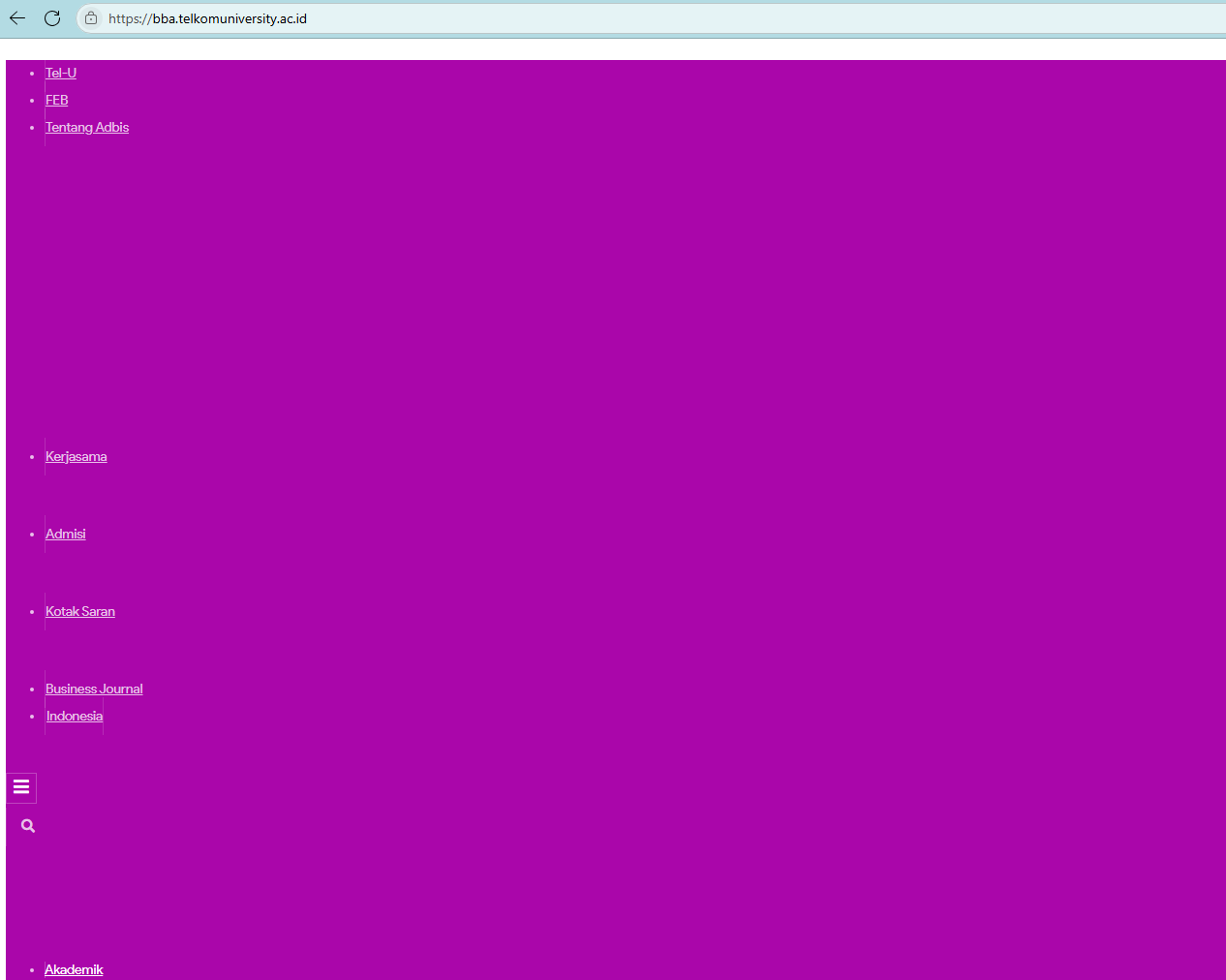

Have you ever opened a faculty or unit website at Telkom University and found it looking messy? What should be a neat and structured page suddenly displays only unstyled blue text, and the background has changed to a strange color, as in the image below.
If you’ve ever encountered this, don’t panic! This issue is quite common on WordPress-based websites that use caching to speed up loading times. The good news is, the solution is very simple.
This article will explain why this can happen and how to overcome it step by step which can be done by each website operator and/or assisted by expert staff from the Directorate of Information Technology Center (PuTI) Telkom University.
Why Does a Website’s Appearance Become Broken? Understanding the Role of Cache
To make our website fast, we use several layers of caching technology . Think of a cache as a website’s “short-term memory.” Instead of building a page from scratch each time a visitor arrives, the server stores a pre-built static version (HTML, CSS, JavaScript) and serves it instantly. This is much faster.
In the Telkom University environment, we generally use three layers of cache :
- Cache Plugin (LiteSpeed Cache / Hummingbird Pro): This plugin runs directly on our WordPress website server. Its job is to optimize files, combine CSS and JavaScript code, and create static versions of our web pages.
- Cloudflare Cache: Cloudflare is a Content Delivery Network (CDN) that stores copies of our websites on multiple servers around the world. When you access a website, Cloudflare will serve content from the closest server location, significantly speeding up access times.
- Browser Cache: Your browser (such as Chrome, Firefox, or Safari) also stores files like images, CSS, and JavaScript from websites you’ve visited. This prevents the browser from having to re-download them when you return.
Broken display issues typically occur when there’s a mismatch between these cache layers . For example, your browser might receive the latest version of the HTML file, but the CSS file (which controls styling and appearance) is an older version stored in Cloudflare or the browser’s cache . As a result, the page doesn’t have instructions on how to display it, resulting in a messy display.
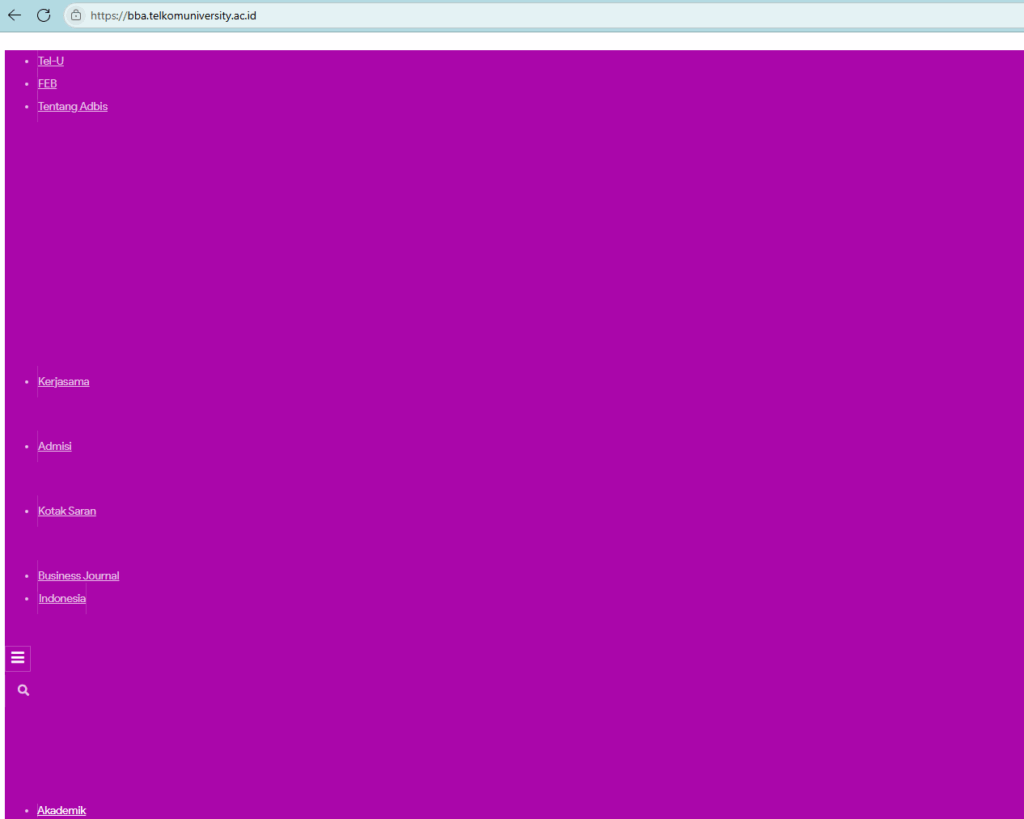
The display comes out however, messy.
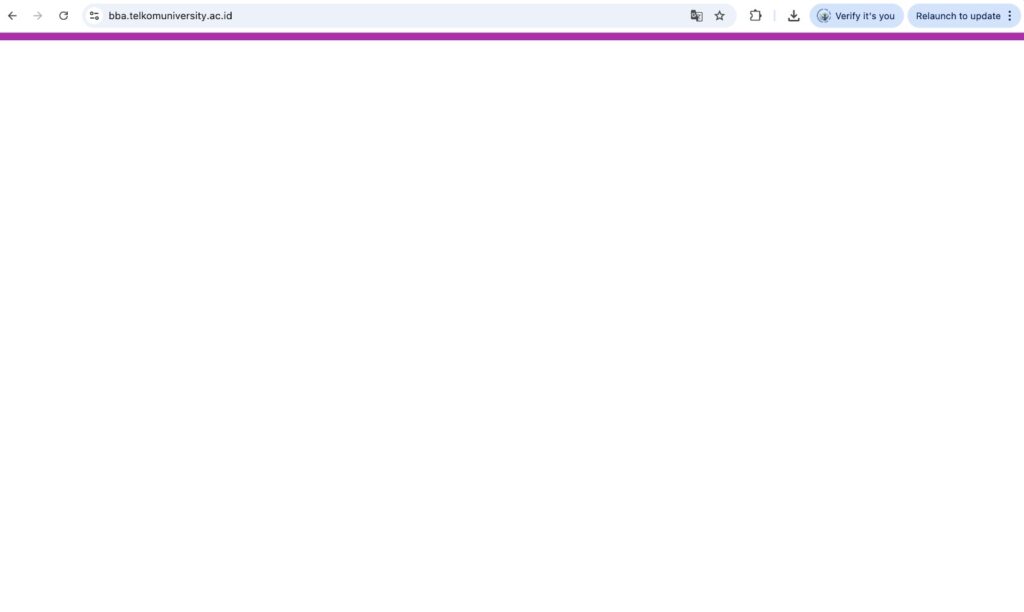
The display is only a little and empty
Step-by-Step Solution to Fix a Broken Display
Here are three steps you can take, ranked from easiest for general users to those requiring admin access.
Step 1: Perform a “Hard Refresh” on Your Browser (For General Users)
This is the first step and the most frequently successful. A hard refresh forces your browser to ignore its cache and re-download all assets (HTML, CSS, JS) from the server.
The method is very easy:
- On Windows/Linux (Chrome, Firefox, Edge): Press
Ctrl + F5orCtrl + Shift + R. - On macOS (Chrome, Firefox, Safari): Press
Cmd + Shift + R.
After performing a hard refresh , in most cases, the website display will return to normal.
Step 2: Clear Cache Via Plugin (For Website Operators)
If a hard refresh doesn’t work, the cache issue is likely server-side. Website administrators will need to log into their WordPress dashboard to clear the cache using their plugin (LiteSpeed Cache or Hummingbird Pro).
- For LiteSpeed Cache: There’s usually a LiteSpeed icon in the top admin bar . Hover over it and select “Purge All . “
- For Hummingbird Pro: Go to the Hummingbird Pro > Caching menu , then click the “Clear Cache” button .
This action will delete all cache files created by the plugin on the server and rebuild them from scratch.
Step 3: Clear Cache in Cloudflare (For Website Administrators from PuTI)
This is a last resort if the two methods above haven’t resolved the issue. This means Cloudflare may still be serving older versions of files from its global network.
Administrators who have access to Cloudflare accounts need to do the following:
- Login to the Cloudflare dashboard.
- Select the problematic website domain.
- Go to the Caching > Configuration menu .
- Click the “Purge Everything” button .
This action will clear the entire cache for that domain across all Cloudflare servers globally. Please note that after performing “Purge Everything,” some first-time visitors may experience a slight slowdown in the website as the cache is being rebuilt.
The next action taken by PuTI is usually related to security configurations that limit access to website scripts, so the display may not be perfect.
Conclusion
A broken website can be quite panic-inducing, but it’s essentially a side effect of the website acceleration technology we use. The core problem is a cache data mismatch .
By following this solution sequence:
- Hard Refresh in browser.
- Clear Cache in WordPress plugin.
- Purge Cache in Cloudflare.
- Firewall Configuration
You can quickly restore your website to its normal appearance. As a best practice, whenever performing a major update to a theme or plugin, it’s highly recommended to proactively clear all cache layers to prevent this issue from occurring.
If this has been done by general users and website operators, but the website display is still messy, then immediately input a complaint ticket to PuTI via the portal https://satu.telkomuniversity.ac.id/